
Zoom and full screen
Zoom as a browser does it: one row reading − 110% + in the View and right-click menus, Firefox's steps from 30% to 300%, and Ctrl+= / Ctrl+- / Ctrl+0. Full screen on F11.
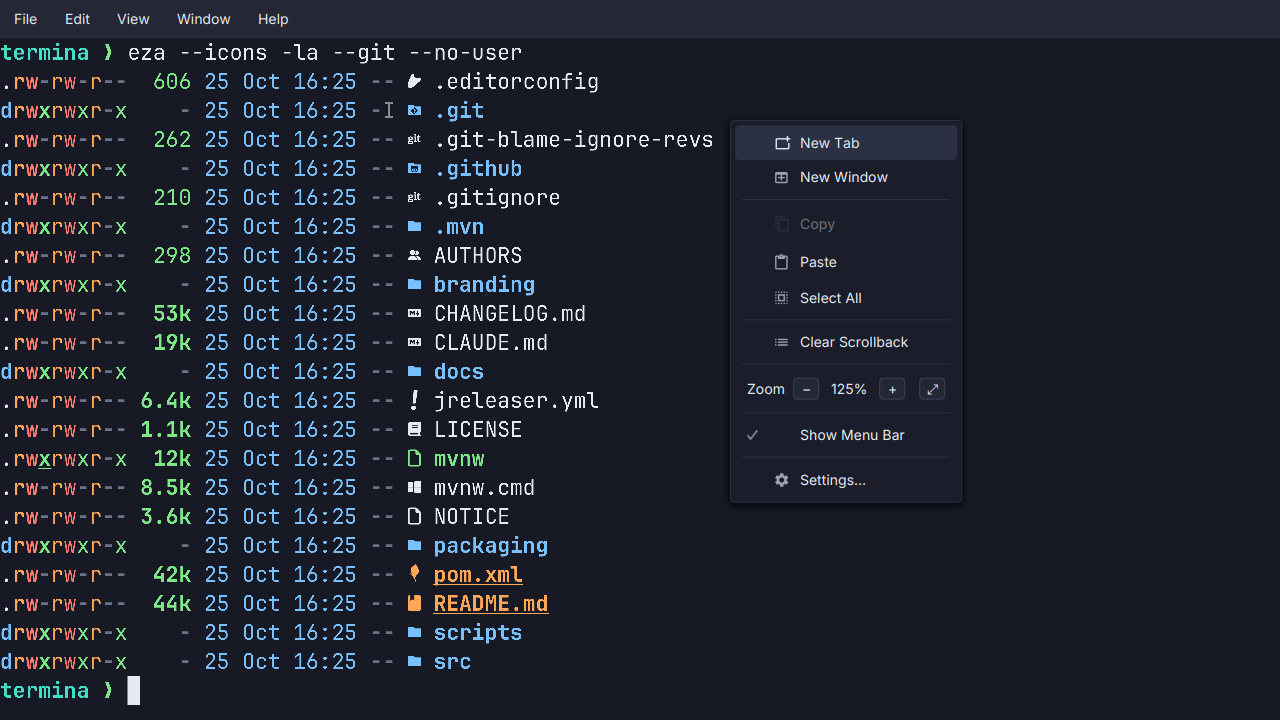
- One row. The View menu and the right-click menu carry
Zoom − 110% + ⤢. The menu stays open while you press−and+, since finding the right size takes two or three presses, and clicking the percentage resets it. - Browser steps: 30, 50, 67, 80, 90, 100, 110, 120, 133, 150, 170, 200, 240 and 300%.
- Chords:
Ctrl+=zooms in,Ctrl+-out andCtrl+0resets (Cmdon macOS). A real+key and the keypad’s+zoom in too. - Separate from the font size. Zoom multiplies the size set in Settings, so resetting it returns to your size rather than replacing it. It applies to every tab and window, and is kept across launches.
- Full screen with
F11(Ctrl+Cmd+Fon macOS), the row’s⤢button, which also closes the menu, or the palette.Escapedoes not leave full screen; it belongs to vim and the rest.
On macOS the View menu lists Zoom In, Zoom Out, Actual Size and Full Screen as ordinary items, since the screen menu bar cannot draw the row. The right-click menu keeps the row there too.